Registering Items

Register by Drag and Drop
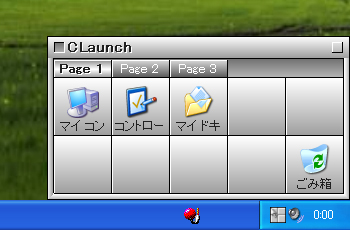
Drag the program, file, or folder you want to register from the desktop or a folder window, and move the cursor to the bottom-right corner of the screen while dragging.
When the CLaunch window appears, drop the file onto an empty button to register it at that position.

If you plan to repeat the registration process, it is convenient to
pin the CLaunch window and register items by drag and drop.
You can register multiple items at once by selecting and dragging multiple files.
Shortcuts are normally registered as their target items, but if you drop them while holding the Shift key, they are registered as shortcuts. (Folders are always registered as their targets.)
Items such as This PC, Recycle Bin, and items in Control Panel can also be registered by drag and drop.
You can register a URL by dragging and dropping it from a browser address bar or a link on a web page.
You can register up to 1000 items per page.
Register from the Menu
Right-click an empty button and select
Register Item from the displayed menu to open the
Register Item dialog.
In the
Register Item dialog, you can register not only regular files but also special folders and special items.
 Special items that can be registered
Register a Running Application (Windows 2000 or later)
You can register a running application in CLaunch using the following procedure.
Use this method when registering UWP apps (such as Microsoft Store apps).
- Start the application you want to register.
- Right-click an empty button and select Register Item from the menu.
- In the displayed Register Item dialog, click the Select Window button.
- Click any area on the window of the application you want to register.
- Confirm that the application path has been automatically entered in the File/URL field, and then click the OK button.
Configure Registered Items
Right-click the item button and select
Properties from the displayed menu.
Item Properties dialog
Move and Copy Items
Registered items can be moved by drag and drop.
Holding down the Ctrl key while dragging an item copies it.
Moving items